

Walkthrough · 1:45 ·
The Whole Loop: Ask, Approve a Change, Roll It Back
TorchTiger Engineer traces how incident priority is set, creates a system property after you approve its plan, then reverts it.
What Happens on Screen
This film has background music and on-screen captions, no voice-over. This is what it shows, in order.
- 0:00
Title card: TorchTiger Engineer.
- 0:02
The business rules list, filtered to the incident table. On screen: “38 business rules touch incident. Which one sets priority?”
- 0:06
On screen: “You inherited the instance. Nobody documented it.” Then: “So ask it.” The TorchTiger Engineer panel opens beside the list.
- 0:17
The developer types: “Which business rule sets the priority on incident, and what does it actually do?” On screen: “Ask how your instance works — in plain English”.
- 0:24
The panel queries the incident table's business rules and finds none named for priority. On screen: “It reads your actual config — rules, scripts, flows”.
- 0:30
Before sending the records it read, it shows a card headed “Before this leaves your browser”. The names it found are replaced by placeholders such as [PERSON_1], and only the redacted text is sent. On screen: “Sensitive data is redacted on your device first”. Only the personal data it detects is replaced. (Recorded before the card stopped waiting for Cancel or Send redacted; it lists what was replaced as each message or result is sent.)
- 0:38
The answer: “It's not a named business rule — it's a Data Lookup.” Priority is set by a Data Lookup Definition named Priority Lookup. On screen: “A grounded answer + the exact records to change”.
- 0:45
Write mode is on for this recording. On screen: “Read-only by default — enable Write to change”. The developer types: “Create a new system property named torchtiger.demo.scratch, type string, value demo, so I can see the plan-and-approve flow.”
- 0:56
The panel writes a plan: insert the property into sys_properties, captured in a tracked update set. Nothing is written until execute permission is granted.
- 1:04
The approval card lists the summary, the record it will write, the target scope (global), the instance and the account used (your session). On screen: “It proposes a plan. Nothing runs until you approve.”
- 1:10
The developer clicks Grant & Execute. The panel creates an update set on the instance and the property inside it. On screen: “Approved → one scoped, version-tracked update set”.
- 1:17
The Change Log lists every change the panel has made on this instance. On screen: “Every change it made, per instance”.
- 1:22
The developer selects the new property and asks to revert it. On screen: “Made a mistake? Roll it back”. The revert goes through the same approval card: “Revert 1 change(s): delete created records / restore prior versions”.
- 1:32
The revert runs in its own update set. On screen: “Undone with ServiceNow's own native revert”. (The caption overstates it: the extension reverses the change itself, through ServiceNow's Table API, from the state it saved before the change.)
- 1:40
End card: TorchTiger Engineer, Free Community Edition, torchtiger.com.
More Demo Videos
Recorded on a real ServiceNow instance, like this one. See them all.
-
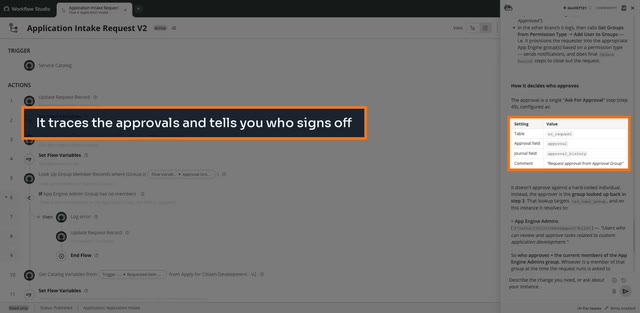
68 Flow Steps Someone Else Wrote: Who Approves?
TorchTiger Engineer traces a 68-step flow to the group that approves it, then shows the safe way to add an escalation.
Ask Your Own Instance
The free Community Edition runs in Chrome or Edge on your own Anthropic key. Try the same question on your dev instance.
Notify Me About Community- Free — bring your own Anthropic key
- Read-only by default
- Plan & approve before any change
- Locked out of production